Replacing a router can leave an otherwise healthy security system scattered across old and new network settings. The camera still knows yesterday's Wi-Fi credentials, a hub has lost its Ethernet connection, and the household cannot remember which small power adapter belonged to which box. A little preparation makes the change easier to finish cleanly.
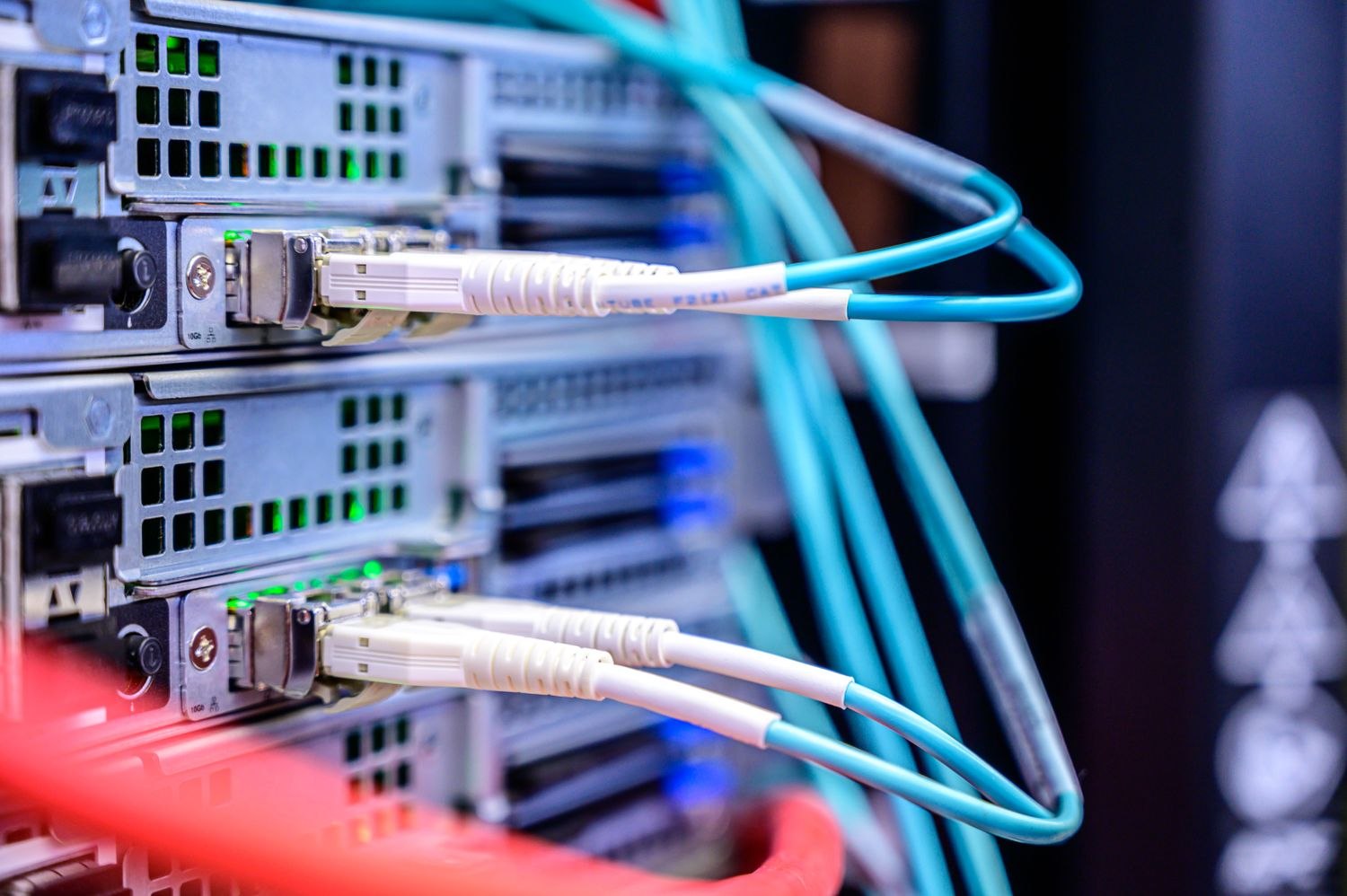
List the security equipment using the network. Separate wired devices from wireless ones and note any additional access points, mesh nodes or switches. Photograph the existing cable connections privately, taking care not to expose passwords or setup codes if the image will be shared. Label similar power supplies before disconnecting them.
Keep the product-specific network-change instructions available offline. Some devices let you update Wi-Fi details through the app; others have a different process. Do not assume that a factory reset is the normal first step. It can remove settings or create extra pairing work that a supported network change would avoid.
Choose a sensible time
Make the switch while someone authorized is on site and has time to check the equipment afterward. Notify other household members that remote access may be unavailable. For a monitored system, ask the provider whether the planned interruption requires any preparation or test arrangement.
Configure the new router securely using its instructions. The FTC recommends current software, strong credentials and suitable network encryption as part of securing connected cameras. Reusing a familiar network name may be convenient in some arrangements, but compatibility and the supported security configuration still need attention.
Bring equipment back in a deliberate order:
- Establish the incoming internet service and the router's normal connection.
- Restore the necessary access points, mesh nodes or switches.
- Reconnect hubs and cameras using their supported network-change procedures.
- Confirm the intended guest or IoT network permissions, if those networks are part of the plan.
If something fails, this sequence lets you identify the stage that stopped rather than dealing with every device at once. A wired hub that has not returned online does not yet give you a reason to reconfigure every wireless camera.
Keep the old router available during the supervised transition if the provider's arrangements allow it. Do not factory-reset and discard it before you know the replacement is working and any useful settings have been recorded. Conversely, avoid leaving both routers connected in an improvised arrangement just because different cameras appear on each. Finish with one understood network design, not two partially working installations that nobody can explain.
Test more than the home-screen device list. Open a fresh live view, play a newly recorded event and verify the relevant alarm status through its supported process. Test authorized remote access away from the home Wi-Fi as well. A device reachable only from inside the house has not completed the same check.
Update your equipment note with the new router model and installation date. Remove obsolete network equipment once you know it is no longer needed, following its secure disposal or reset instructions. Keep any remaining uncertainty visible in the note so a partly reconnected camera does not become a forgotten task after the household's ordinary internet access is working again.